External Linkage Mode Settings
Overview
External Linkage Mode connects AITuberKit to an external WebSocket server. The external server can generate responses, run custom tools, or control a streaming workflow, while AITuberKit handles chat display, speech synthesis, character expression, motion, and image display.
About Beta Features
External Linkage Mode is currently provided as a beta feature.
- Specifications may change without notice
- Operation may be unstable
- Please test thoroughly before using it in production
- Feedback is welcome if you find bugs or issues
Environment Variables
# Enable External Linkage Mode
NEXT_PUBLIC_EXTERNAL_LINKAGE_MODE=true

# External Linkage WebSocket URL
NEXT_PUBLIC_EXTERNAL_LINKAGE_URL="ws://localhost:8000/ws"
If NEXT_PUBLIC_EXTERNAL_LINKAGE_URL is not set, ws://localhost:8000/ws is used. You can also change the connection URL from the settings screen.
What You Can Do
- Receive text and image input from an external server
- Send user input and camera images from AITuberKit to the external server
- Handle streaming responses with the
v2protocol - Track request acceptance with
ack - Check connection health with
ping/pong - Cancel an in-progress response with
control.cancel - Reconnect with backoff after disconnection
- Keep compatibility with the existing legacy JSON format
Limitations
When External Linkage Mode is enabled, the following features are disabled:
- Conversation Continuation Mode
- Realtime API Mode
Also note the following:
- AI processing must be implemented on the external server side
- AITuberKit handles display, voice, and character control for received responses
- If the external server is stopped, the connection status becomes error or disconnected
Settings Screen
- Start AITuberKit
- Open the settings screen
- Turn on "External Linkage Mode" from "AI Settings"
- Change "External Linkage WebSocket URL" if needed
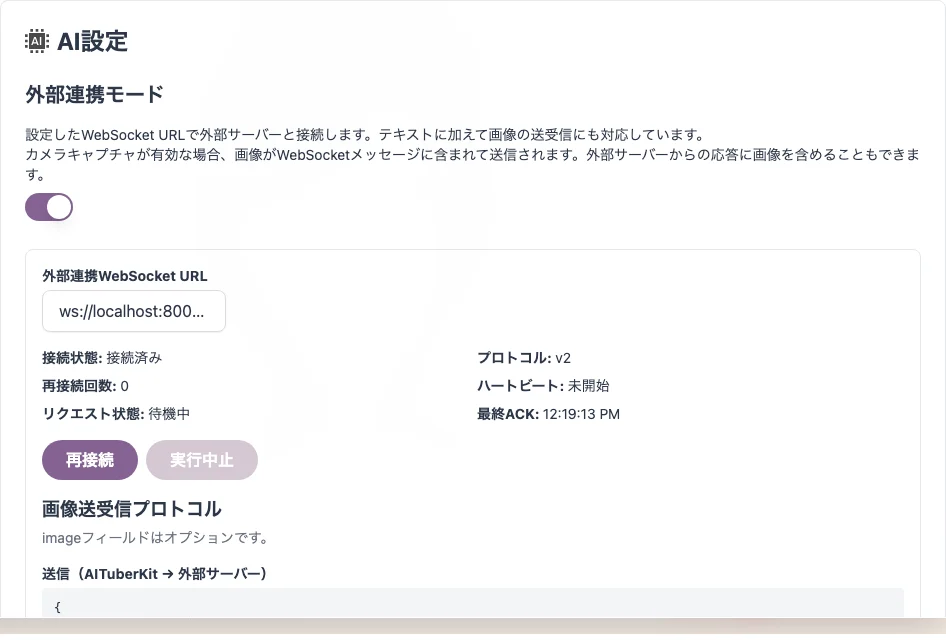
The settings screen shows the following status fields.
| Item | Description |
|---|---|
| Connection status | idle, connecting, open, closed, or error |
| Protocol | legacy (v1 compatible) or v2 |
| Reconnect count | Number of automatic reconnect attempts |
| Heartbeat | idle, healthy, or stale |
| Request status | idle, sent, acknowledged, completed, or error |
| Last ACK | Time when the server last accepted a request |
| Last error | WebSocket or request-level error |
Use the "Reconnect" button to reconnect to the current URL. The "Cancel" button is available only when the connection uses the v2 protocol and a request is currently active.
Compatible Server
The dedicated server repository for External Linkage Mode is tegnike/aituber-server. Start the server first, then enable External Linkage Mode in AITuberKit.
cd aituber-server
docker-compose up -d --build
Default WebSocket endpoint:
ws://127.0.0.1:8000/wsAITuberKit uses ws://localhost:8000/ws by default, which usually connects to this endpoint as-is.
Protocol
External Linkage Mode supports both the legacy (v1 compatible) format and the new v2 format. There is no separate new v1 protocol; legacy means the original JSON compatibility mode.
When the server sends session.ready immediately after connection, AITuberKit detects it as a v2 server and switches outgoing messages to v2. If no session.ready event is received, AITuberKit keeps using the legacy format.
v2 Envelope
In v2, every message uses a common envelope. The wire value of version remains the string "2" for compatibility, but the UI and documentation display it as v2.
{
  "version": "2",
  "id": "msg_client_001",
  "type": "chat.message",
  "sessionId": "session_client_001",
  "timestamp": "2026-06-20T00:00:00.000Z",
  "payload": {
    "text": "Hello",
    "image": "data:image/png;base64,..."
  },
  "metadata": {}
}
Main events:
| type | Direction | Purpose |
|---|---|---|
session.ready | server -> AITuberKit | Server readiness and capabilities |
session.hello | AITuberKit -> server | Client capability announcement |
chat.message | AITuberKit -> server | User input |
chat.start | server -> AITuberKit | Response start |
chat.delta | server -> AITuberKit | Streaming response chunk |
chat.done | server -> AITuberKit | Response completed |
chat.error | server -> AITuberKit | Request-level response error |
ack | server -> AITuberKit | Request accepted |
ping / pong | bidirectional | Heartbeat |
control.cancel | AITuberKit -> server | Cancel the active request |
file.upload | AITuberKit -> server | File upload |
character.message.received | AITuberKit -> server | AITuberKit received a server response |
character.message.rendered | AITuberKit -> server | AITuberKit rendered the response in chat |
character.speech.start | AITuberKit -> server | Speech processing started |
character.speech.done | AITuberKit -> server | Speech segment completed |
character.speech.error | AITuberKit -> server | Speech processing error |
character.response.done | AITuberKit -> server | All speech for the response completed |
Streaming Response
The server returns a response as chat.start, one or more chat.delta events, and a final chat.done.
{
  "version": "2",
  "type": "chat.delta",
  "requestId": "msg_client_001",
  "payload": {
    "text": "Hello."
  }
}
requestId should match the original chat.message.id. AITuberKit uses this ID to update the request status.
AITuberKit Lifecycle Events
chat.done means that response generation on the server has finished. It does not mean that speech synthesis or character playback in AITuberKit has finished.
If the server needs to start the next action after the character finishes speaking, use character.response.done sent from AITuberKit.
{
  "version": "2",
  "type": "character.response.done",
  "requestId": "msg_client_001",
  "payload": {
    "requestId": "msg_client_001",
    "speechSegmentCount": 2,
    "completedAt": "2026-06-20T00:00:05.000Z"
  }
}
For finer control, use per-segment character.speech.start / character.speech.done. These are useful for synchronizing subtitles, external lights, OBS scenes, and other per-speech actions.
Cancel
To stop an active response, AITuberKit sends control.cancel.
{
  "version": "2",
  "type": "control.cancel",
  "payload": {
    "requestId": "msg_client_001"
  }
}
If the server accepts the cancellation, it returns ack and then ends the response with chat.done containing cancelled: true.
{
  "version": "2",
  "type": "chat.done",
  "requestId": "msg_client_001",
  "payload": {
    "requestId": "msg_client_001",
    "cancelled": true
  }
}
Legacy Format
For compatibility with existing servers, the legacy JSON format is still supported.
AITuberKit to server:
{
  "content": "User message",
  "type": "chat",
  "image": "data:image/png;base64,..."
}
Server to AITuberKit:
{
  "text": "Assistant response",
  "role": "assistant",
  "emotion": "happy",
  "type": "",
  "image": "data:image/png;base64,..."
}
Parameters:
text: Text for the character to speakrole: Usuallyassistantemotion: Expression.neutral,happy,sad,angry,relaxed, orsurprisedtype:startstarts a response,endfinishes a response, and an empty value is a normal messageimage: Base64 encoded image. For streaming, include it only in the first chunk when possible
Python Example
This example connects to a v2 server and sends a message.
import json
import uuid
import websocket
from datetime import datetime, timezone

def now_iso():
    return datetime.now(timezone.utc).isoformat().replace("+00:00", "Z")

ws = websocket.create_connection("ws://localhost:8000/ws")

# Receive session.ready
print(ws.recv())

message_id = f"msg_{uuid.uuid4().hex}"
ws.send(json.dumps({
    "version": "2",
    "id": message_id,
    "type": "chat.message",
    "sessionId": "session_sample",
    "timestamp": now_iso(),
    "payload": {
        "text": "Hello!"
    }
}))

while True:
    event = json.loads(ws.recv())
    print(event)
    if event.get("type") == "chat.done":
        break

ws.close()
Troubleshooting
Cannot connect
- Check that the server is running
- Check that "External Linkage WebSocket URL" is correct
- If the server is running in Docker, check that port
8000is exposed - Check whether a firewall or security tool is blocking WebSocket traffic
Protocol stays legacy (v1 compatible)
If the server does not send session.ready, AITuberKit treats it as a legacy server. To use v2, send session.ready immediately after connection.
Request never completes
- Check that the server returns
chat.done - Check that
requestIdmatches the originalchat.message.id - Check whether
chat.erroris returned
Heartbeat becomes stale
AITuberKit sends ping while connected with v2. If the server does not return pong, the heartbeat status becomes stale. Check the server-side ping / pong implementation.